Easily transfer your routes and activity data between your COROS Dura or COROS smart watch and your Ride with GPS account.
_____________________________________________________________________
Download the Ride with GPS mobile app
_____________________________________________________________________
Use our free web-based Route Planning tools to create GPS routes that you can navigate on your COROS device. Once your activities have synced to Ride with GPS, you can check out your personal activity history in an interactive map. Premium subscribers (and legacy Basic plans) can also use their Personal Heatmap to easily see their past ride history on the map.
Connect Ride with GPS and COROS
- Log in to your account on our website: ridewithgps.com.
- Click your profile icon in the upper right corner > select Settings.
- Click Connected Services on the left side of the screen.
- Locate the COROS option, and click Connect with COROS.
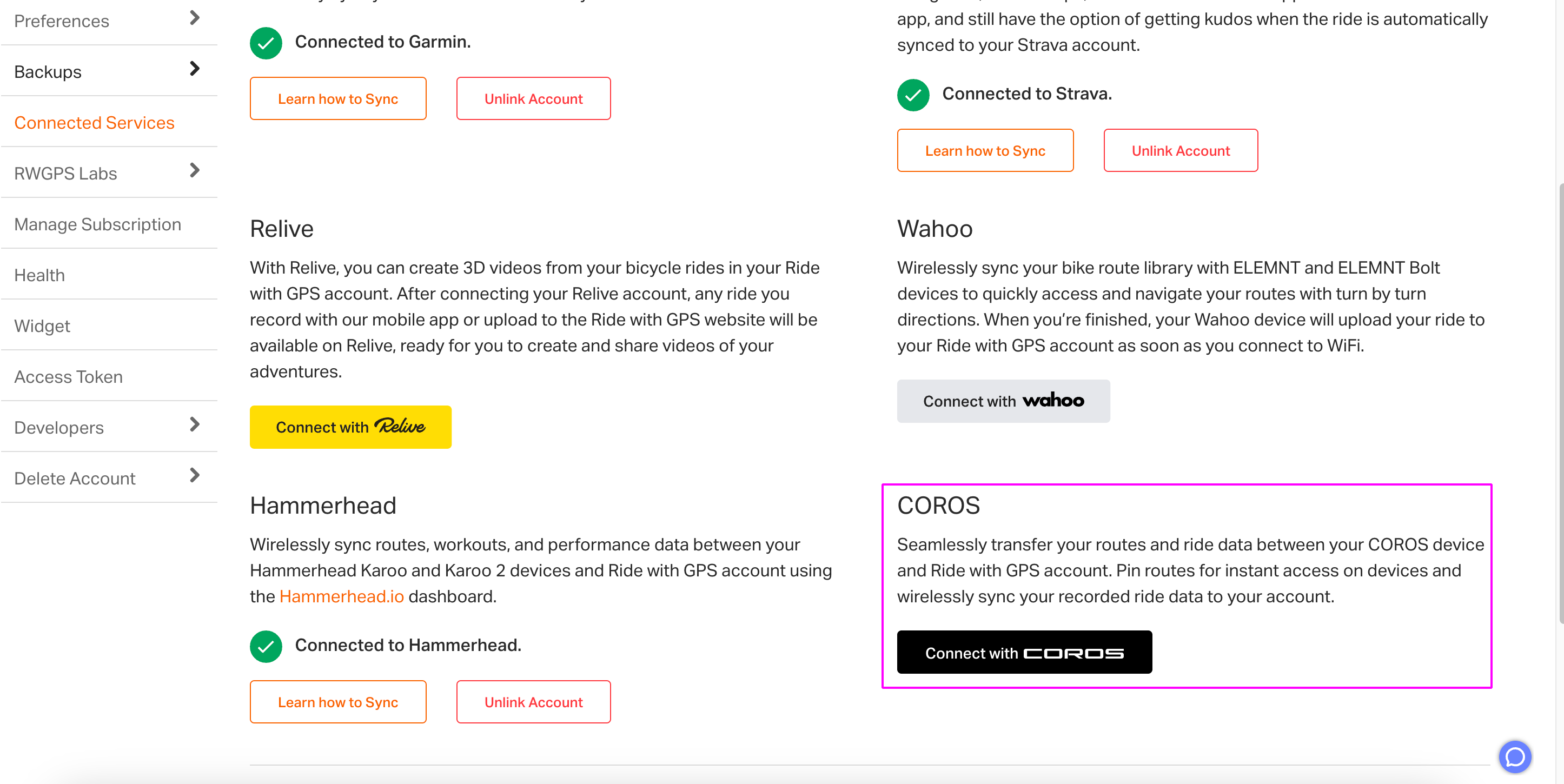
- You'll be taken to a login page for COROS where you can log in to an existing COROS account.
- Check the box to allow Ride with GPS access to your COROS workouts.
Once you've set up your COROS account with Ride with GPS, you can automatically sync routes and recorded activity data seamlessly between your Ride with GPS account and your COROS device. Simply clicking Send to COROS or saving routes to your Pinned Library will automatically sync them to your device.
Send routes to COROS on the web
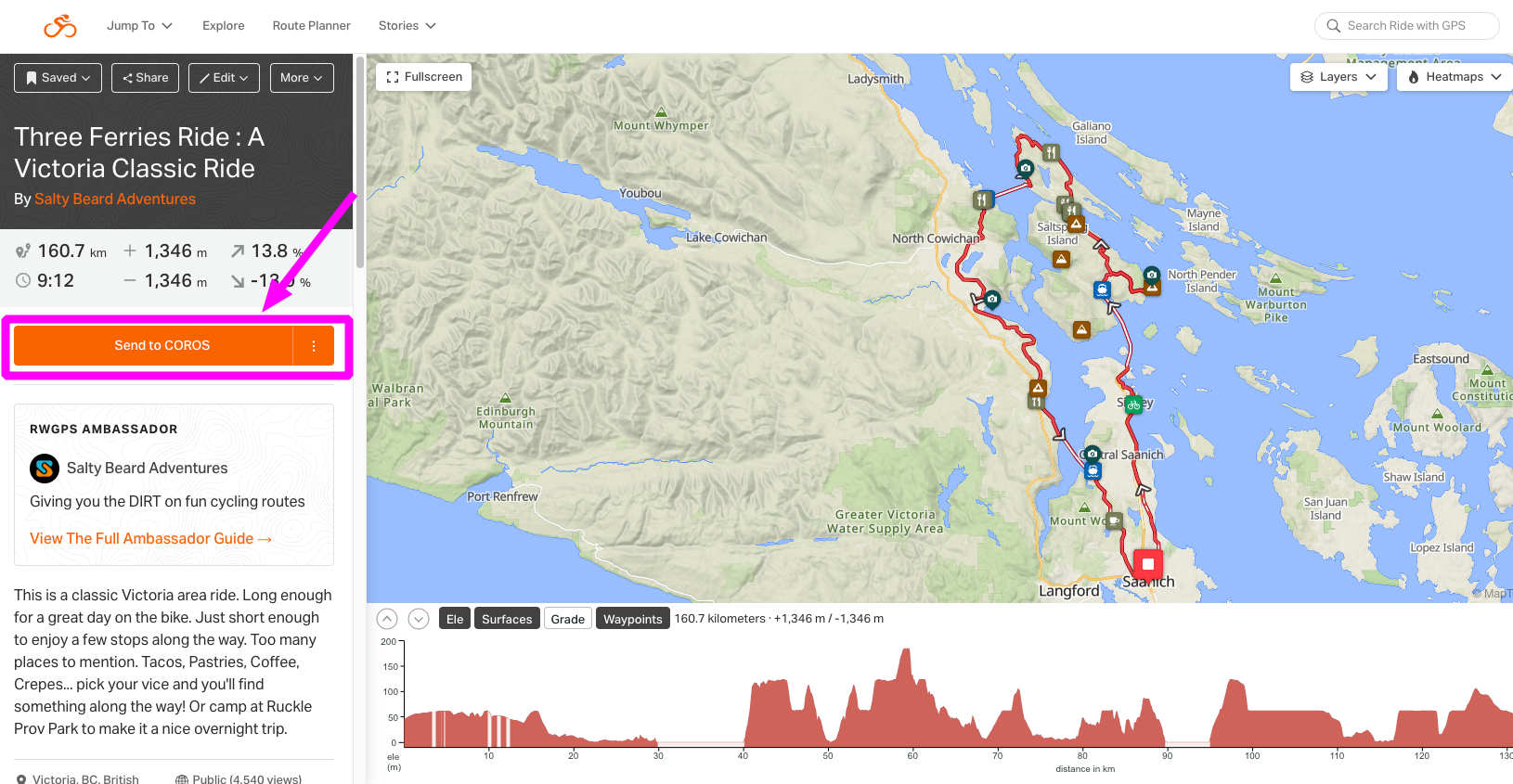
Find a route that you want to navigate on your COROS device? Simply click Send to COROS to easily transfer it to your device!
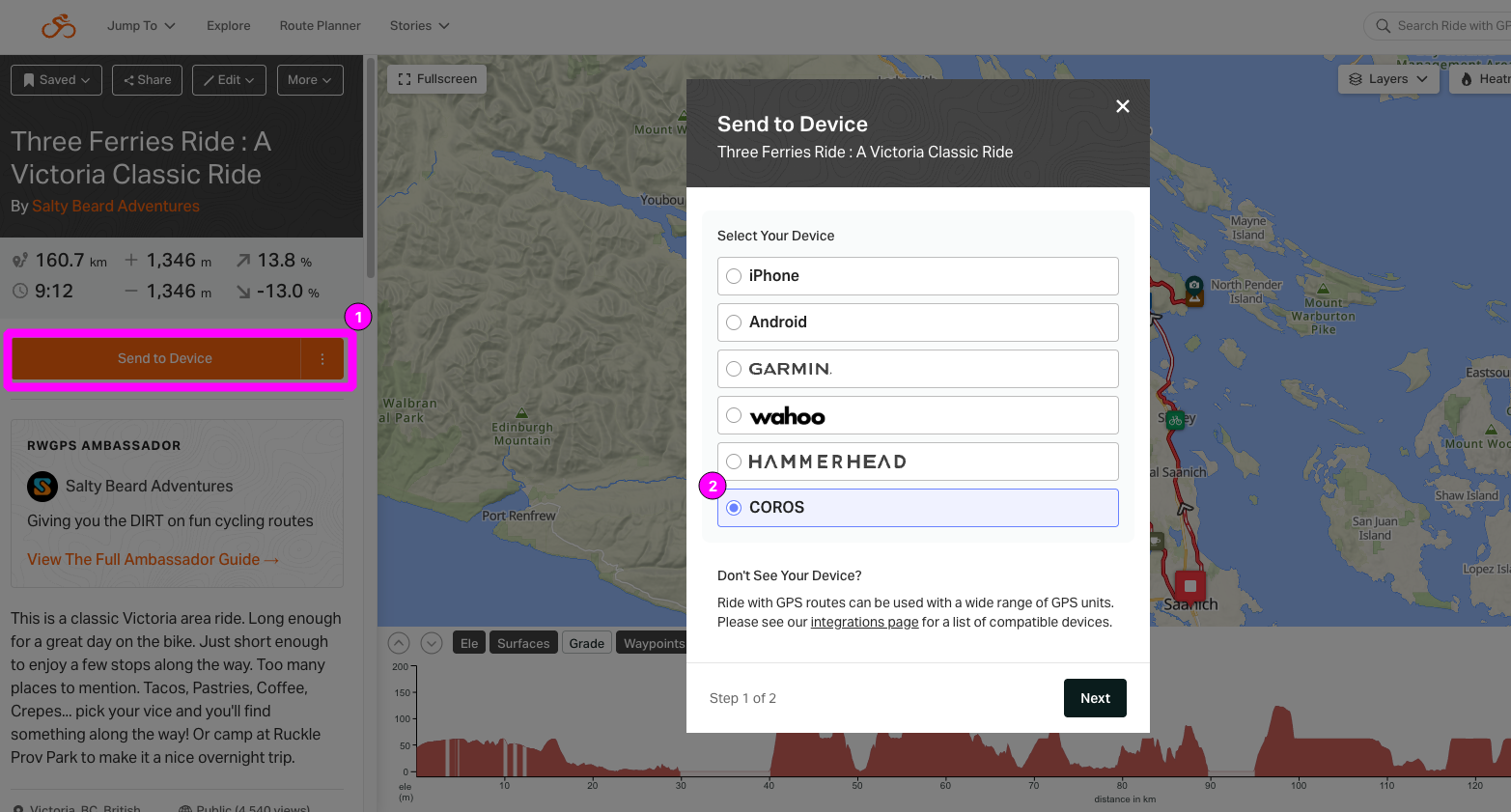
If you have not yet connected your Ride with GPS and COROS accounts, clicking Send to Device and then selecting COROS will walk you through the steps to do so.
Send routes to COROS from the mobile app
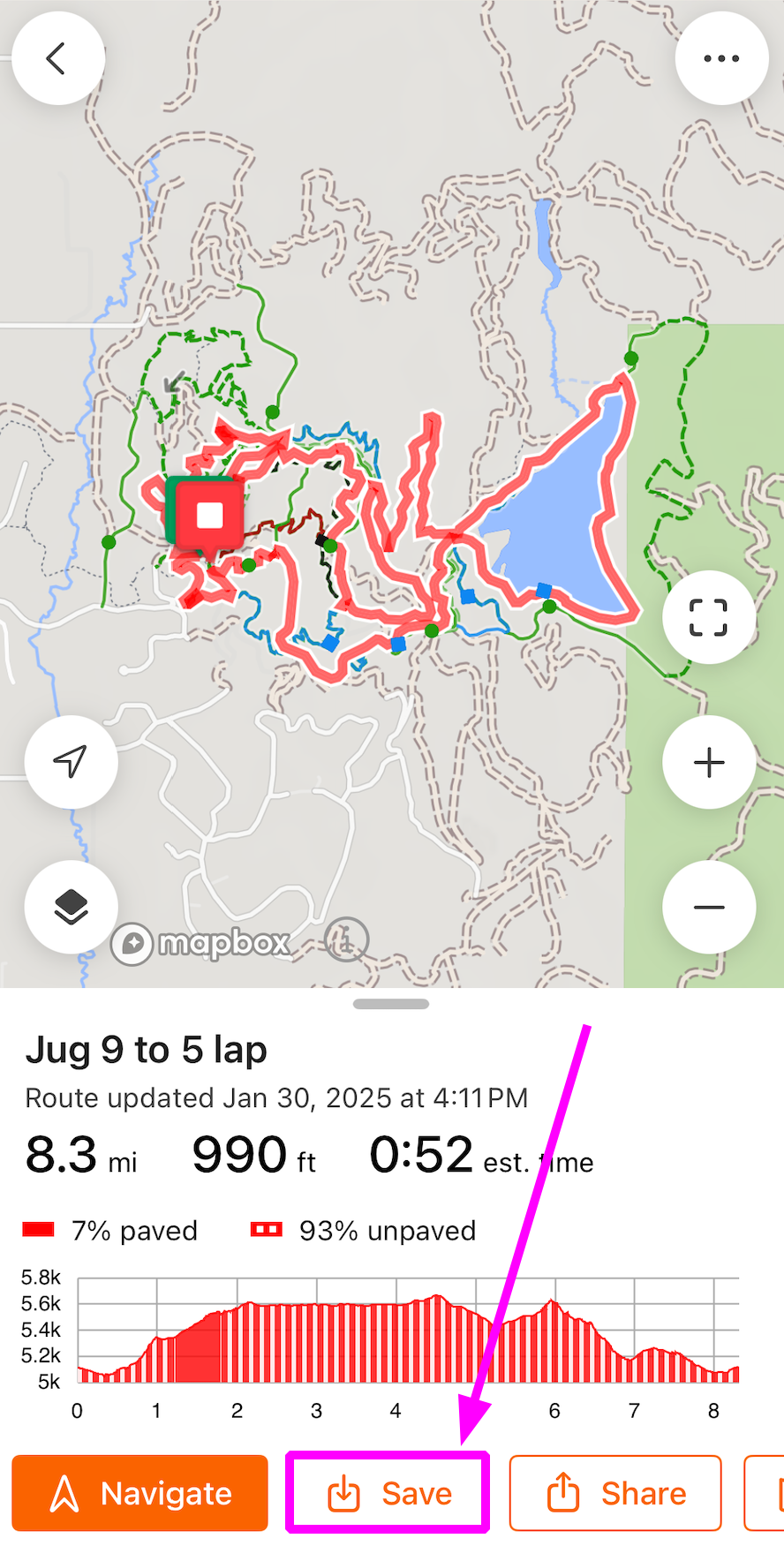
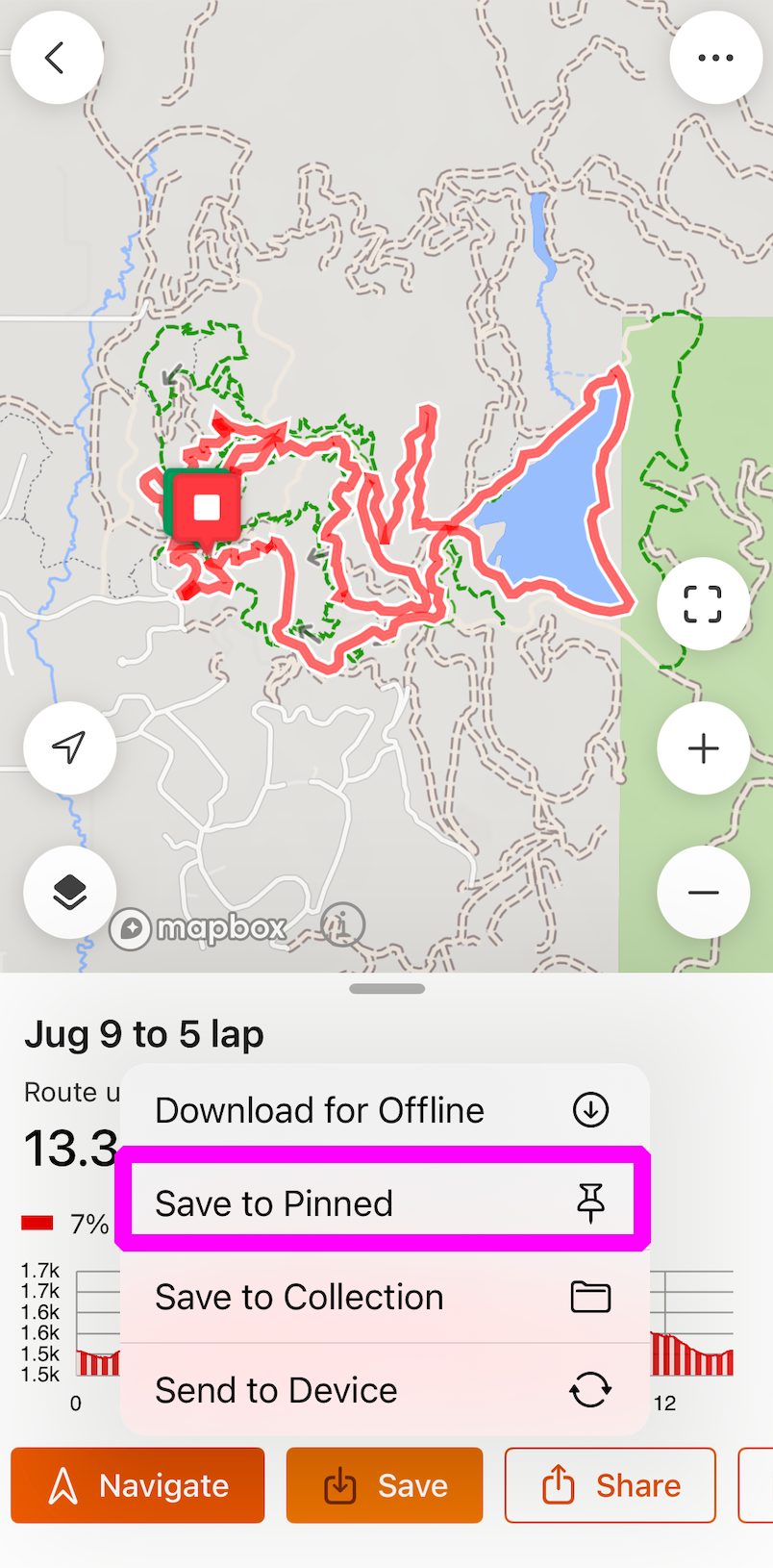
When viewing your route in the mobile app, tap Save > Save to Pinned.
 |
 |
Once you've pinned a route, it will be visible in your COROS app. To locate the route:
- Open the COROS app and tap Explore.
- Open the My Collection folder by tapping the star or folder icon in the upper right-hand corner.
- Tap on the route, and then select the option to sync it with your device.
You can learn more about this on COROS's help page.
Automatic Activity Sync with COROS
Once set up, automatic activity sync via COROS is a one-way process that uploads recorded activity data from your COROS device, syncs via your COROS account, and transfers your recorded activities directly to your Ride with GPS account.
FAQ
- Will my routes' Waypoints and POI sync to COROS?
- Where's the Send to COROS option in the mobile app?
- Use the Save button to save a route to your Pinned routes when you want to send that route to COROS. There isn't a "Send to COROS" option in the mobile app at this time.
Related to