Organize your routes and activities into Collections for easy access, reference, and sharing. Collections can organize routes and activities based on to location, region, country, season, distance, discipline, or any desired theme. They're accessible across individual, club, and organization accounts alike, making them a useful tool to present and share routes with friends, family, group ride participants, and your larger community.
_____________________________________________________________________
Download the Ride with GPS mobile app
_____________________________________________________________________
Upgrade to Premium to navigate Collection routes in the Ride with GPS mobile app. Legacy Basic plans include this too.
Look for Collections tab on the left side of your account Dashboard menu. From here, you will be able to access your Collections, create new Collections, and share your Collections page with others.
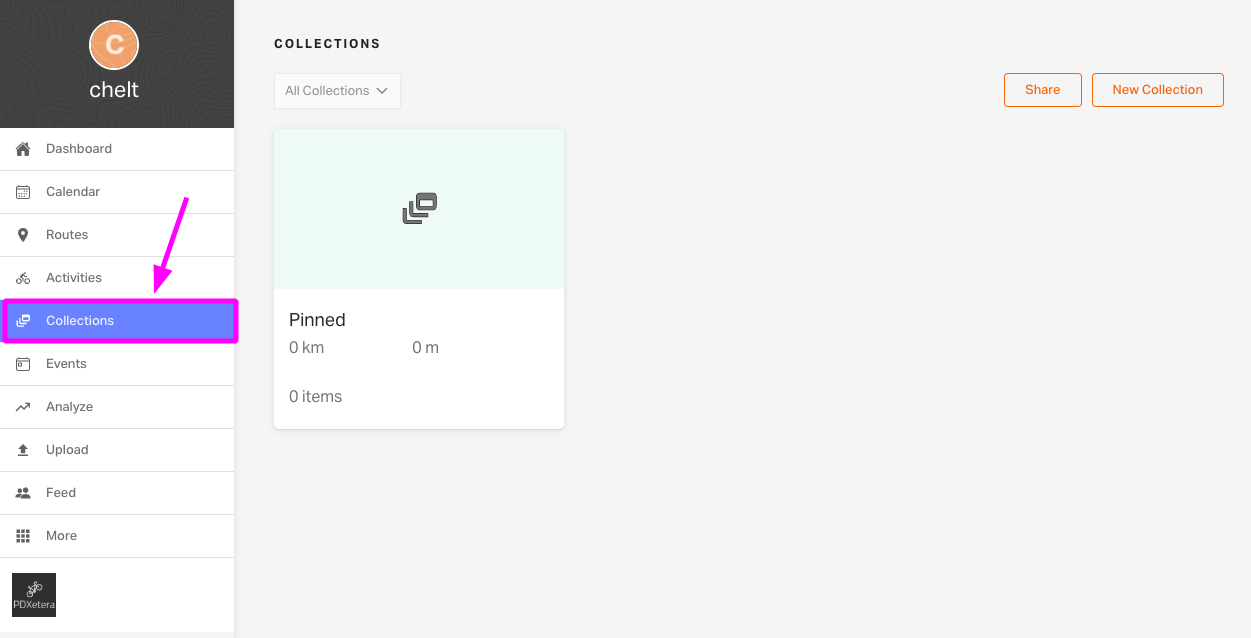
Create a Collection
- Select Collections from your account Dashboard.
- Click New Collection.
- Title your Collection, add an optional Overview, set Collection Visibility, and select a Cover Image. Use the checkbox at the bottom to select whether you want a map displayed or not.
- Click Save to begin Importing routes and activities to your Collection.
Import Collection Routes and Activities
- View your Collection and click the + icon to add items to that Collection.
-
Click to select routes from the displayed route and activity list.
- Use the search bar and filter icon to help locate the items that you want to select.
- You can add anything from your routes and activities lineup, or any public activities and routes from other Ride with GPS users.
- Click Add to Collection to finish.
More Ways to Create and Add to Your Collections
Add routes in bulk or create brand new Collections directly from the Routes and Activities tabs in your profile Dashboard.
- Select either the Routes or Activities page from the left side dashboard.
- Check the boxes for the desired Routes or Activities to add, which will trigger the Save to Collection tab above.
- Select the appropriate Collection(s) from the dropdown menu or New Collection.
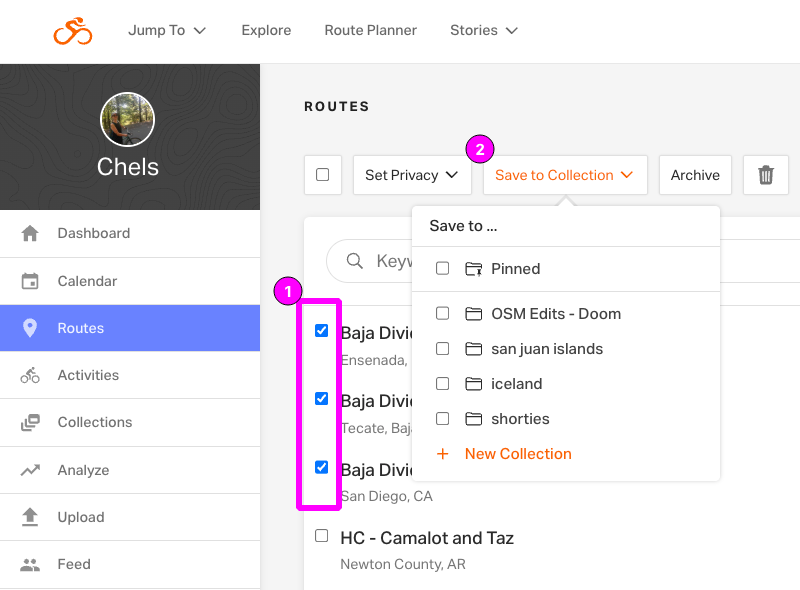
Add and Create from the Save Menu
When viewing any activity or route on the web, you can add it to any of your Collections with a couple of clicks.
Select the Save or Saved menu and then use the checkboxes to select an existing Collection, or select New Collection to quickly create a new Collection that includes this item.
Edit a Collection
After creating a Collection you can adjust your Collection details or appearance. Just click the three dot menu > Edit Collection to start making updates.
- Update your Collection's Title, Overview, Privacy Settings, or Cover Image.
- Use the + icon to add additional items to your Collection.
- To remove items, select one or more by clicking on the checkbox, and then click Remove.
- Use the Sort: dropdown to adjust the default order that your courses are listed in, or drag and drop items by clicking on the six dot icon to manually rearrange them in a custom order.
- Use the Show Map toggle to adjust whether a map is displayed on your Collection page.
- Be sure to Save any changes when things look good.
Remove Items from a Collection
Share Your Collections
Share your Collection with others by clicking the Share icon underneath your Collection title.
A pop-up box will appear. Use Copy Link to copy a link for your Collection or select QR Code to create a QR code that you can copy or download. Send your link or QR code out in an message to everyone who should know about your Collection. You can also share your Collection on social networks or on your website with a multi-route embed.
Collection owners can also grant edit permissions to fellow users, making it easier than ever to pool resources and collect all the routes in one place. Whether you're planning a group adventure, gathering resources for a community event, or simply want to co-manage your favorite routes with friends, collaborative Collections are here to enhance your experience.
Add Collaborators to a Collection
As the owner of a Collection, you can invite users to View or Edit your Collection. Editors will be able to make changes to the Collection, while Viewers will only be able to view the Collection without making any changes.
To invite a collaborator:
- View the Collection on the website and click the Share icon.
- In the Add People box, search for one of your friends on Ride with GPS. You can also enter an email address if you're sharing the route with someone who does not have a Ride with GPS account.
- Click on their name to add them to the list of collaborators. You can add multiple people at once by searching for additional names or email addresses.
- Select if you'd like to make this collaborator a Viewer or Editor.
- Click Send to invite your collaborators!
Once your invitation has been sent, anyone invited will receive an email notification and a notification on the Ride with GPS website.
Manage Collaborators
When a Collection has collaborators, the Collection owner will see the number of collaborators and their profile icons on the Collections page. Click on the profile icons to bring up the share modal, where the collection owner can edit or remove the access of collaborators by clicking the three dots next to their name.
Save and View Collections
Users have the ability to view and save any Collection that has been shared with them. Saving a Collection provides easy access to the Collection and contained routes for web access and navigation via the Ride with GPS mobile app.
You can also send Collections routes to an external account for navigation on your Garmin, Wahoo, or Hammerhead device.
Save Collections
While viewing a Collection, click the Save icon to bookmark the Collection to your account, giving you easy access on the web or mobile app. Once a Collection is saved, your save icon will turn orange.
Save as many Collections as you like, and access them alongside your other Collections at any time.
Remove a Saved Collection
When viewing a Collection, the save icon will be solid orange if you have already saved the Collection to your account. Click the orange Saved icon to remove a Collection from your saved Collections.
Collection Map
Routes and Activities within a Collection can be displayed on a multicolored map when viewed on the website.
Select the Layers, Heatmaps, or Map Type drop down to adjust the map appearance. Drag and drop the yellow pegman icon onto your map to access Google Street view. You can also use the icon in the upper left corner of your map to view a fullscreen map.
If you don't see a Collection map, make sure the Collection's owner has enabled the Show Map toggle on the Edit Collection page.
Click on an individual course on your map or on the item list to view that course's stats, elevation profile, POI, and Waypoints. Once a course is selected, use the Go to Route/Activity option to be redirected to a new window with that course's summary map.
Uncheck the box next to selected courses, or select the Show All option to display all items on your map again.
Send to Device
Send Collection routes to your Garmin, Wahoo, or Hammerhead account while viewing a Collection on our website.
- View a Collection on the website.
- Check the box next to each route that you'd like to send.
- You can select multiple routes at a time.
- Only routes can be sent to an external device. If you also select activities, you may no longer see the Send to Device option.
- Select Send to Device.
- Select your preferred device in the Send to Device modal.
- Select Next, and follow any additional instructions to send routes to your external account.
More information about sharing routes to external accounts can be found in our Send to Device tutorial.
Collections in the Mobile App
All of your Collections and those you follow will be accessible for viewing, sharing, and navigation within the Ride with GPS mobile app. The Collections icon is located on the mobile app Home screen.
- Tap the Collections icon on the mobile app Home screen.
- Select the desired Collection to view the items contained within.
- Select an item to view, Download for Offline, or begin Navigation.
You can also access your Collections from the Library tab. Simply tap Library > Collections to see all of your Collections.
Add or Remove Collection Items in App
You can adjust the items in your own Collections directly within the app.
View a route or activity's summary map, and select the Save button> Save to Collection. From here, select or de-select Collections from your Collections list, or use the New Collection option to create a new Collection that includes this item.
Create New Collections in App
Create new Collection in the app by selecting the New Collection icon, which can be found in your Collections Library and on the Add to Collection screen.